Create a Tunnel
- Click + in the toolbar or press Cmd+N.
- Enter a Tunnel Name and choose the Connection Type: AWS Session Manager for private AWS resources, or SSH for an existing SSH environment.
- Enter the connection details and click Save.
- Connect it from the tunnel list.
AWS Session Manager
Use Session Manager to reach a private RDS database or another service accessible from an SSM-managed EC2 instance.
The editor groups the fields in this order:
- AWS Session Manager — choose your AWS Profile, sign in if the profile requires SSO, then choose the AWS Region where the instance runs.
- Destination — enter the managed Instance ID, Database or Service Host (your private RDS endpoint), and Remote Port. The instance must be able to reach that host.
- Check Access — Validate checks your credentials and that Session Manager can reach the instance. Test Permissions checks the IAM permissions, and Copy IAM Policy copies an example policy. Both use the AWS CLI (v2) to resolve credentials, as starting the tunnel does.
- Port Forwarding — choose an unused Local Port on your Mac. The route summary shows how traffic reaches the destination.
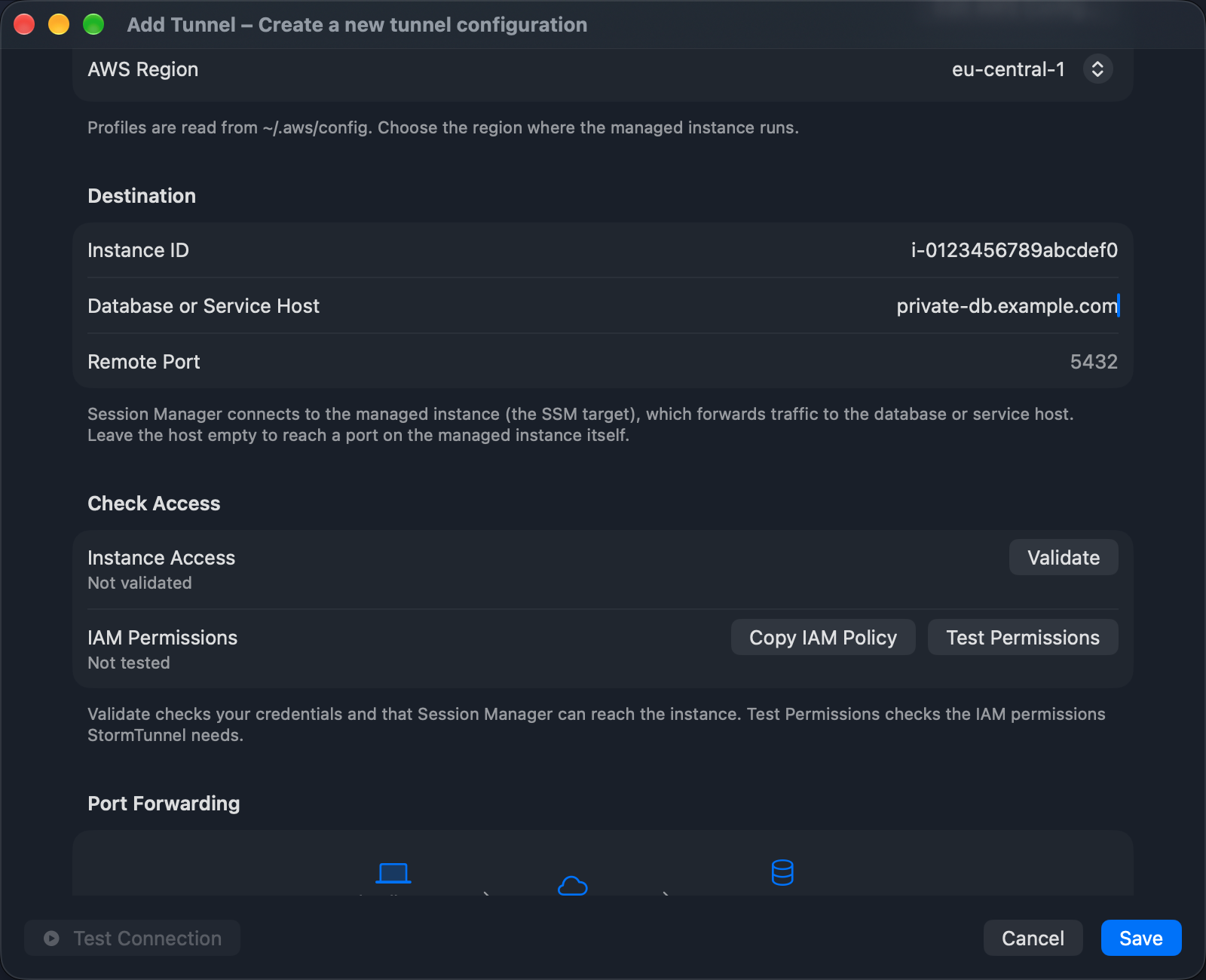
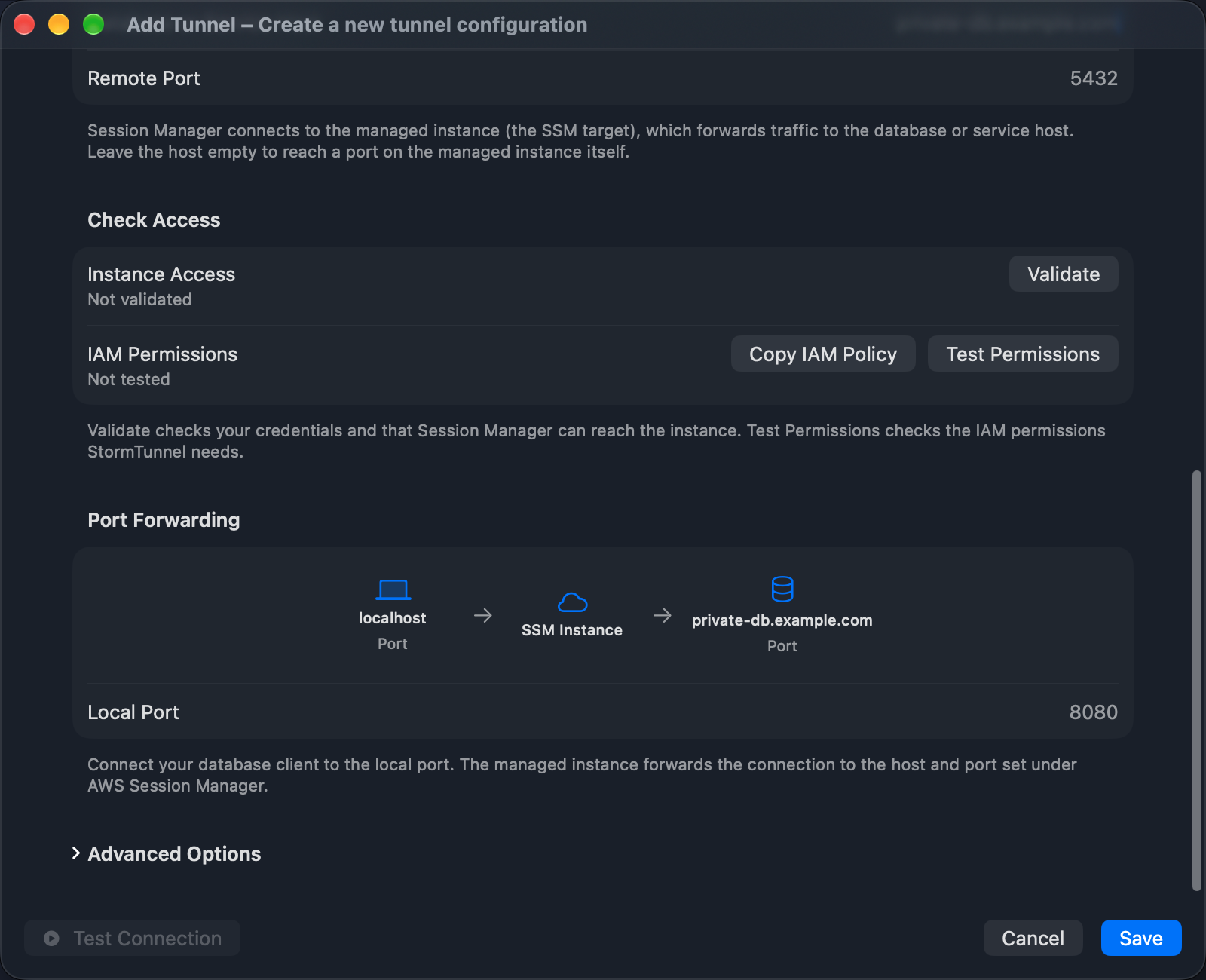
Connect your client to localhost and the local port. Leaving the destination host empty forwards to a service on the managed instance itself.
See Connect to a private RDS database for the full workflow and prerequisites.
SSH
Use SSH when your existing infrastructure requires a bastion or SSH server. The editor groups the fields as SSH Connection (Username, Host, SSH Port), Authentication (Method: SSH Key or Password), Port Forwarding (Local Port, Remote Host, Remote Port), and Advanced Options (Auto-Reconnect, Intelligent Auto-Retry, Debug Level, Force CLI Mode).
Type or choose a host from ~/.ssh/config in Tunnel Name to fill in its details. See Authentication for SSH key and password setup.
Port Selection
The local port must be available on your Mac. If it is already in use, choose another local port. The destination port remains the service's listening port.
For connection problems, see Troubleshooting.