License Settings
StormTunnel → Settings (Cmd+,) → License tab
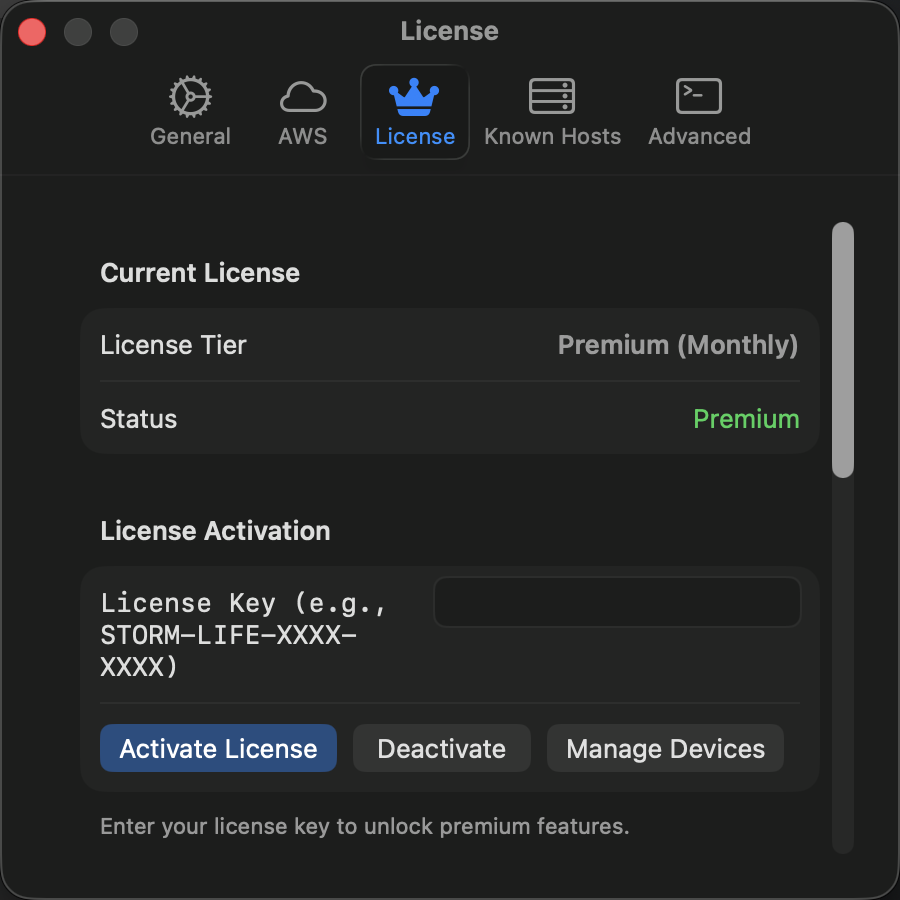
View your plan status and activate licenses.
Plans
| Feature | Free | Premium |
|---|---|---|
| Concurrent tunnels (SSH or AWS) | 1 | Unlimited |
| AWS Session Manager tunnels | Yes | Yes |
| Auto-Reconnect | Yes | Yes |
| In-app AWS SSO sign-in | No | Yes |
| Intelligent Auto-Retry | No | Yes |
| Connection history window | No | Yes |
| Encrypted export | No | Yes |
Free tunnels are not limited in number of saved configurations; only one can be connected at a time.
Pricing
| Plan | Price | Billing |
|---|---|---|
| Monthly | €2.50/month | Cancel anytime |
| Lifetime | €25 one-time | Never expires |
Click View Plans & Pricing… in the Upgrade to Premium section, or see the current plans. After you pay, activate the license key from your purchase email.
Activate a License Key
If you purchased from the website:
- Go to Settings → License.
- Paste your key into the field under License Activation.
- Click Activate License.
Move License to a New Mac
- On the old Mac: Settings → License → Deactivate This Device…, then confirm.
- On the new Mac: Settings → License, then enter your key and click Activate License.
Manage Your Purchase
With a Premium license active, the pane shows Manage License (lifetime) or Manage Subscription (monthly). Both open the customer portal, where you can view receipts and manage devices. Monthly subscribers can also cancel there; Premium access continues until the end of the billing period. The portal link is also in your purchase email.
Offline Mode
Premium features work up to 14 days without internet. The license validates every 24 hours when online. A warning appears if validation is pending.
If you're behind a corporate firewall, ask IT to allow api.storm-tunnel.app on port 443.
Refunds
All purchases include a 30-day money-back guarantee. Contact support with your order number.