Known Hosts
StormTunnel → Settings (Cmd+,) → Known Hosts tab
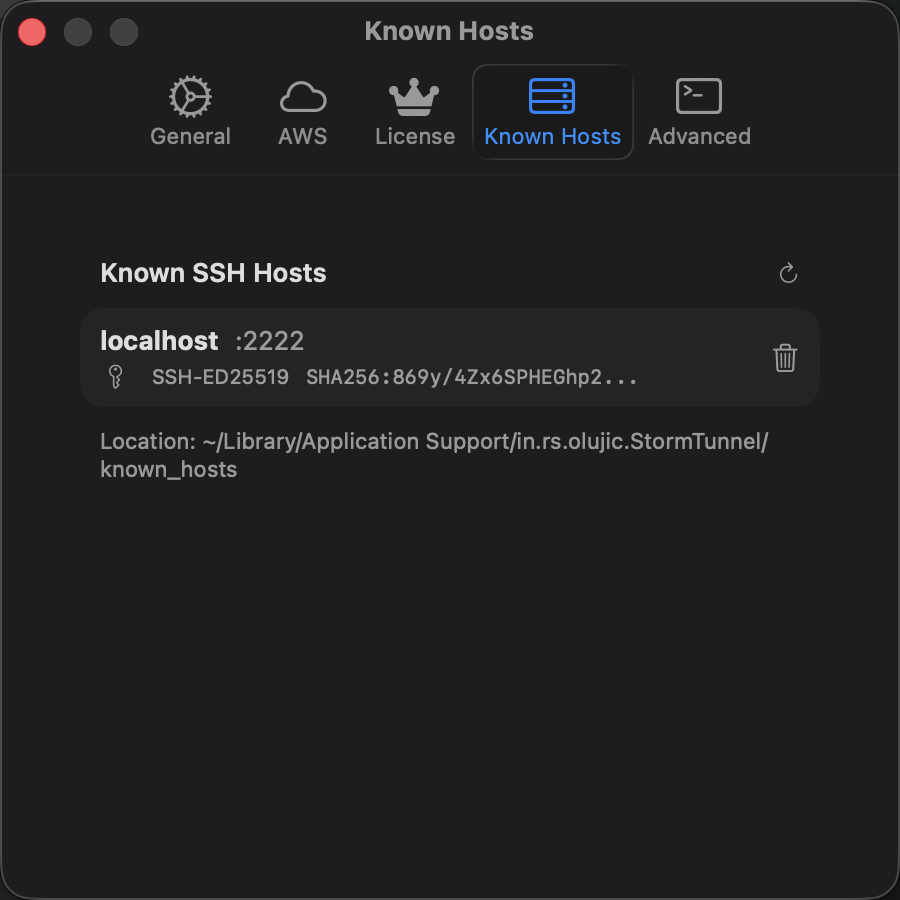
StormTunnel records each server's SSH host key and verifies it on future connections. This prevents man-in-the-middle attacks.
Host Key Types
| Type | Security | Notes |
|---|---|---|
| ED25519 | Excellent | Modern, recommended |
| ECDSA | Good | Modern alternative |
| RSA | Good | Legacy, widely compatible |
| DSA | Weak | Avoid if possible |
Entry Fields
Each known host entry displays:
| Field | Description |
|---|---|
| Hostname | Server address |
| Key Type | ED25519, RSA, etc. |
| Fingerprint | SHA256 hash for verification |
| Date Added | When the key was first stored |
Use the search box to filter by hostname.
First Connection
When you connect to a new server, StormTunnel prompts you to verify the host key. Compare the displayed fingerprint with the one your server administrator provides. If it matches, click Trust this server. Future connections to that server skip the prompt.
Add a Key Manually
To pre-load a host key before connecting:
- Click Add Key
- Paste the public key or fingerprint
- Enter the hostname
- Click Save
Remove a Key
- Select the server in the list
- Click Remove
- Confirm deletion
Removing a key only clears it locally. The next connection to that server will ask you to verify again.
Clear All Keys
Click Clear All to remove every stored host key. You will need to re-verify each server on the next connection.
Warning
Clearing all keys cannot be undone. You will be prompted to verify every server again.
Host Key Changes
When a server presents a different key than the one stored, StormTunnel warns you. This can mean the server admin rotated keys or the server was reinstalled -- both normal. It can also indicate a man-in-the-middle attack.
To resolve a key change:
- Contact your server administrator and ask if they changed SSH keys
- If confirmed, get the new fingerprint and verify it matches
- Remove the old key in StormTunnel and accept the new one
- If the change is not confirmed, do not connect and report it to your security team
Storage
Known hosts are stored at:
This file contains only public keys. Do not sync it to public cloud storage.