AWS Settings
Open StormTunnel > Settings (Cmd+,) and select AWS.
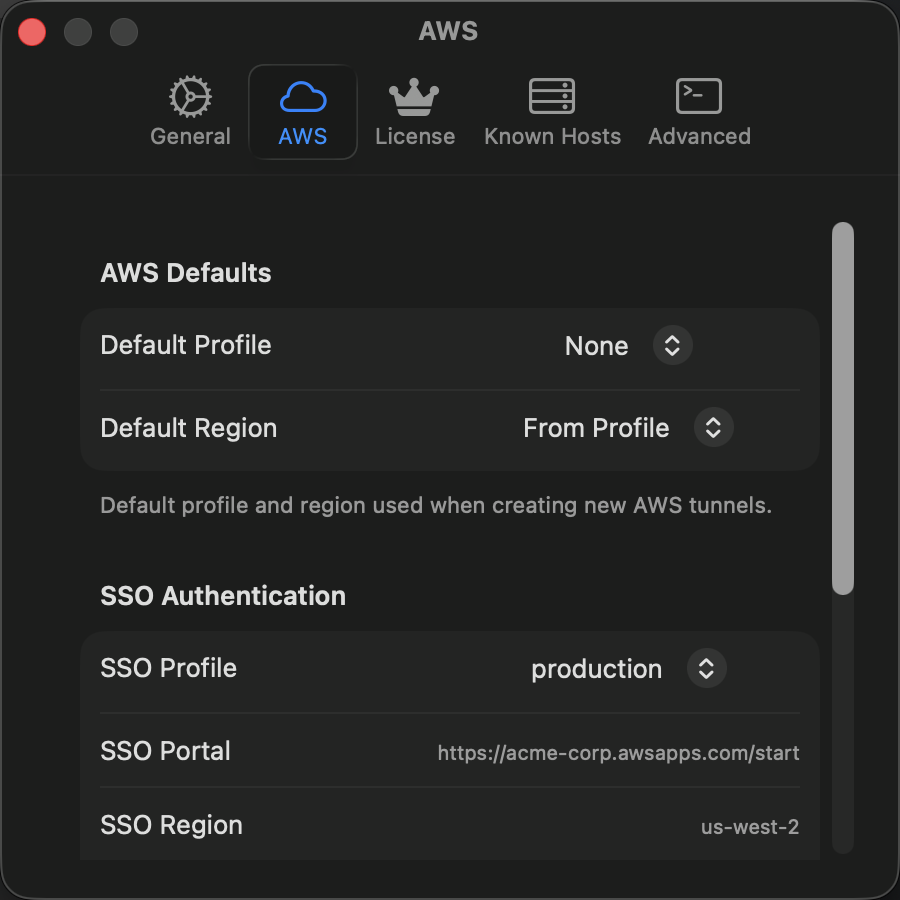
AWS Defaults
| Setting | Description |
|---|---|
| Default Profile | Profile preselected when you create an AWS tunnel. None leaves it unset. |
| Default Region | Region preselected for new AWS tunnels. From Profile uses the region set in the profile. |
Each tunnel keeps its own profile and region, so you can override the defaults in the tunnel editor.
StormTunnel reads profiles from ~/.aws/config. Static, assume-role, and IAM Identity Center (SSO) profiles are listed.
SSO Authentication
For an IAM Identity Center profile, choose it under SSO Profile. The pane shows the SSO Portal, SSO Region, and sign-in Status.
In-app sign-in requires a Premium license. Use Sign In with SSO…, then Refresh Token, Sign Out, or Re-authenticate… as the status requires. Without Premium, the button reads Upgrade to Sign In…; you can still run aws sso login --profile PROFILE in Terminal.
In-app tokens are stored in macOS Keychain and are separate from the AWS CLI's cached token. Starting a tunnel and the editor's Check Access tests resolve credentials through AWS CLI v2. See AWS SSO authentication.
Setup
| Control | Description |
|---|---|
| Verify AWS Setup… | Opens a sheet that checks for AWS CLI v2 and the Session Manager plugin, with install steps. |
| Reload Profiles | Reloads the profile list from ~/.aws/config. |
The footer shows how many profiles were detected.
Permissions
Permission checks are in the tunnel editor, not in Settings. Open an AWS tunnel and use Test Permissions under Check Access. See AWS IAM permissions for the user, EC2 instance, and network requirements.