Main Window
The main window is where you manage all your tunnels.
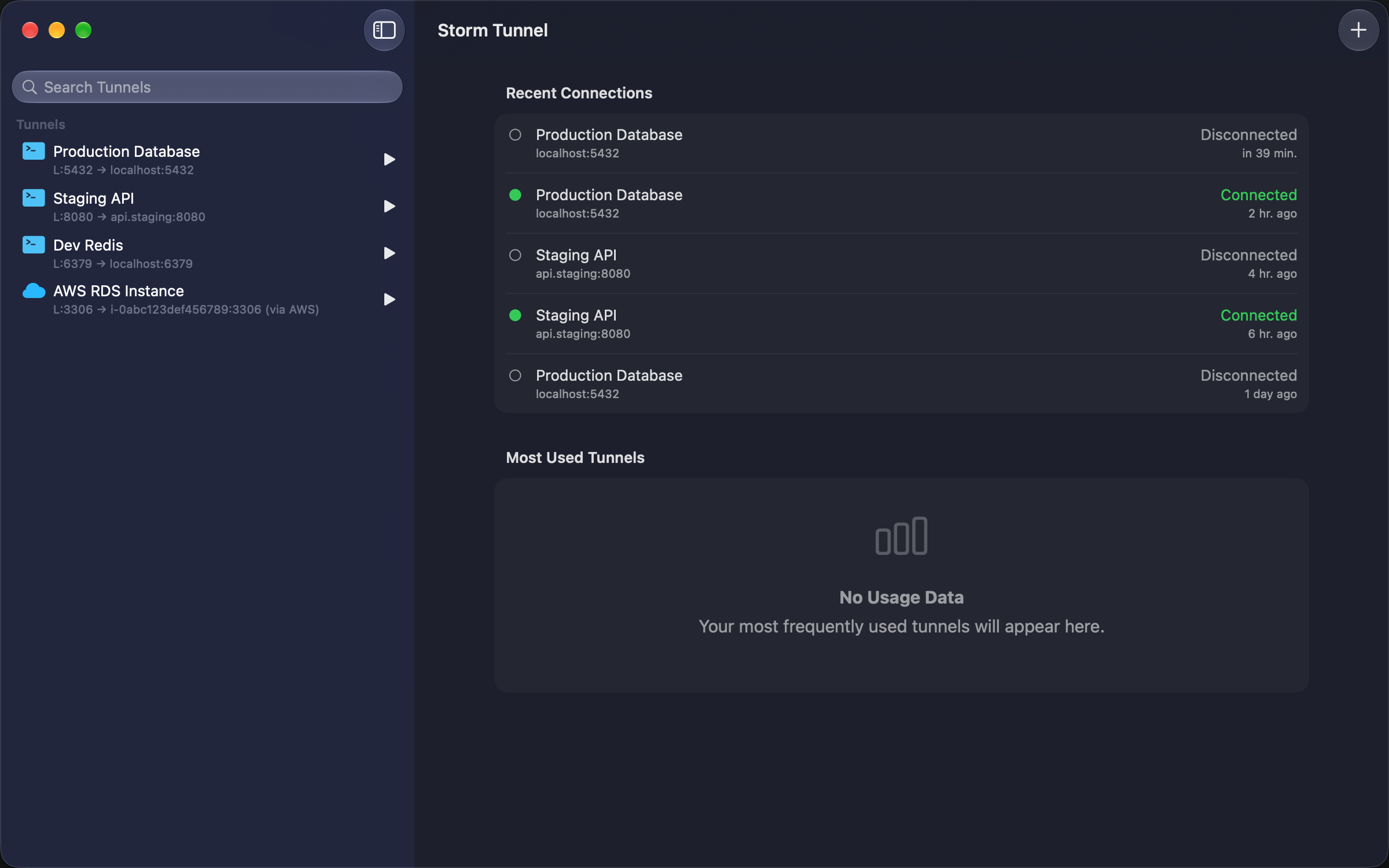
Window Layout
| Area | Purpose |
|---|---|
| Sidebar (left) | List of all your tunnels |
| Detail View (right) | Information about selected tunnel |
| Toolbar (top) | Add Tunnel, Dashboard, Status/History |
Sidebar - Tunnel List
The sidebar lists all tunnels. A line under each tunnel name shows its state; it is hidden while a tunnel is idle.
Status Text
| Status line | Meaning |
|---|---|
| (none) | Disconnected |
| Connection stage | Connecting (for example, checking port or authenticating) |
| Connected (green) | Connected |
| Disconnecting… | Stopping |
| Connection failed (red) | Error. Select the tunnel for details |
Tunnels using the command-line SSH client show CLI Mode.
Quick Actions
- Click a tunnel to see its details
- Connect or disconnect with Cmd+Enter or the context menu
- Right-click for more options (edit, duplicate, connect or disconnect, delete)
Search and Filtering
Search filters tunnels in real time across these fields:
| Field | Example |
|---|---|
| Tunnel Name | "dev-postgres" |
| Remote Host | Server hostname, or the AWS database or service host |
| SSH User / Instance ID | SSH username, or the AWS instance ID |
| Local Port | "5432" |
| Remote Port | "5432" |
To search:
- Click Search Tunnels at the top of the sidebar
- Type your query -- results update instantly
- Press Esc or clear the text to show all tunnels
Search is case-insensitive, matches partial strings, and searches all fields at once.
Detail View
When you select a tunnel, the detail view shows:
- Header -- tunnel name, type, AWS profile and region (or SSH user), and a start/stop button
- Status & Connection Test -- connection state, tunnel type, process ID while running, and a Test button
- Port Mapping -- a local-to-remote diagram, Local Port, SSM Instance (AWS), AWS Target or Remote Host, and Target Port
- Command -- the generated
awsorsshcommand (expand to view or copy)
Use the Status / History switch in the toolbar to see the selected tunnel's connection history.
Dashboard
When no tunnel is selected, the dashboard lists Active Connections, Recent Connections, and Most Used tunnels. Click a row to select the tunnel. Press Esc or click Dashboard in the toolbar to return to it.
Toolbar
| Control | Action | Shortcut |
|---|---|---|
| Dashboard | Return to the dashboard (when a tunnel is selected) | Esc |
| Status / History | Switch the detail view (when a tunnel is selected) | |
| + (Add Tunnel) | Create new tunnel | Cmd+N |
Open Settings from the StormTunnel menu or with Cmd+,.
Duplicate Tunnel
Create a copy of an existing tunnel:
- Keyboard: Shift+Cmd+D
- Right-click: Select "Duplicate" from the context menu
The copy gets " (Copy)" appended to its name.
Menus
File Menu
| Item | Action | Shortcut |
|---|---|---|
| New Tunnel… | Create a tunnel | Cmd+N |
| Import Tunnels… | Import from file | Shift+Cmd+I |
| Export Tunnels… | Export to file | Shift+Cmd+E |
Tunnel Menu
| Item | Action | Shortcut |
|---|---|---|
| Toggle Selected Tunnel | Connect or disconnect | Cmd+Enter |
| Edit Selected Tunnel… | Edit connection settings | Alt+Cmd+E |
| Start All Tunnels | Start configured tunnels | Shift+Cmd+R |
| Stop All Tunnels | Stop active tunnels | Shift+Cmd+. |
Window Menu
Open Connection History, SSH Key Management, or Error Analytics from the Window menu. View → Show Sidebar controls sidebar visibility.
Help Menu
StormTunnel Help (Cmd+?) opens the in-app help window. Online Documentation and Report an Issue open the website.
See Keyboard Shortcuts for the complete list.
Tips
Resize the Sidebar
Drag the divider between the sidebar and detail view to adjust widths.
Use the Menu Bar
Enable Show Status in Menu Bar in Settings > General for quick access without opening the main window.
Copy Commands
Expand Command in the tunnel detail view and click Copy (Shift+Cmd+C) to copy the generated SSH or AWS command. Useful for debugging or running manually in Terminal.
Right-Click for Options
Right-click any tunnel for quick access to edit, duplicate, connect/disconnect, and delete.