License Management
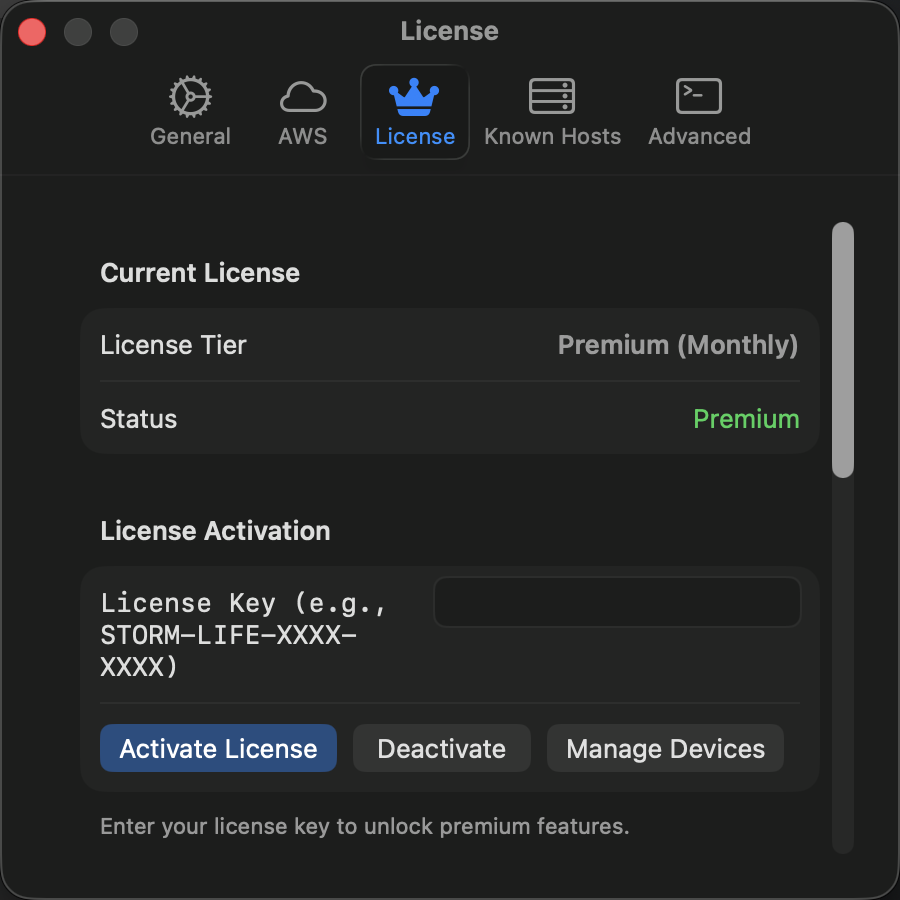
Open StormTunnel > Settings > License to see your current license and the features available in your copy of StormTunnel.
Plans and Features
Plan names, availability, pricing, and included features can change. Check the current plans and pricing for the latest offer.
In the app, the License settings show the active plan and its feature access. The Free plan connects one tunnel at a time (SSH or AWS Session Manager) and includes Auto-Reconnect. Premium removes the tunnel limit and adds in-app AWS SSO sign-in, Intelligent Auto-Retry, the connection history window, and encrypted export. See License settings for the full comparison.
Activate a License
- Open Settings > License.
- Enter the license key from your purchase email under License Activation.
- Click Activate License.
If activation fails, check your network connection and confirm that you entered the key associated with your purchase.
Manage a Subscription
Open the StormTunnel customer portal to manage billing or a subscription. The portal link is also available from your purchase email.
Move to Another Mac
On the current Mac, open Settings > License and click Deactivate This Device…. Then install StormTunnel on the new Mac and activate it with the same license key.
If you cannot manage a device or subscription, contact support.