Connection History
Review connection events for AWS Session Manager and SSH tunnels. Events are recorded locally as you use your tunnels.
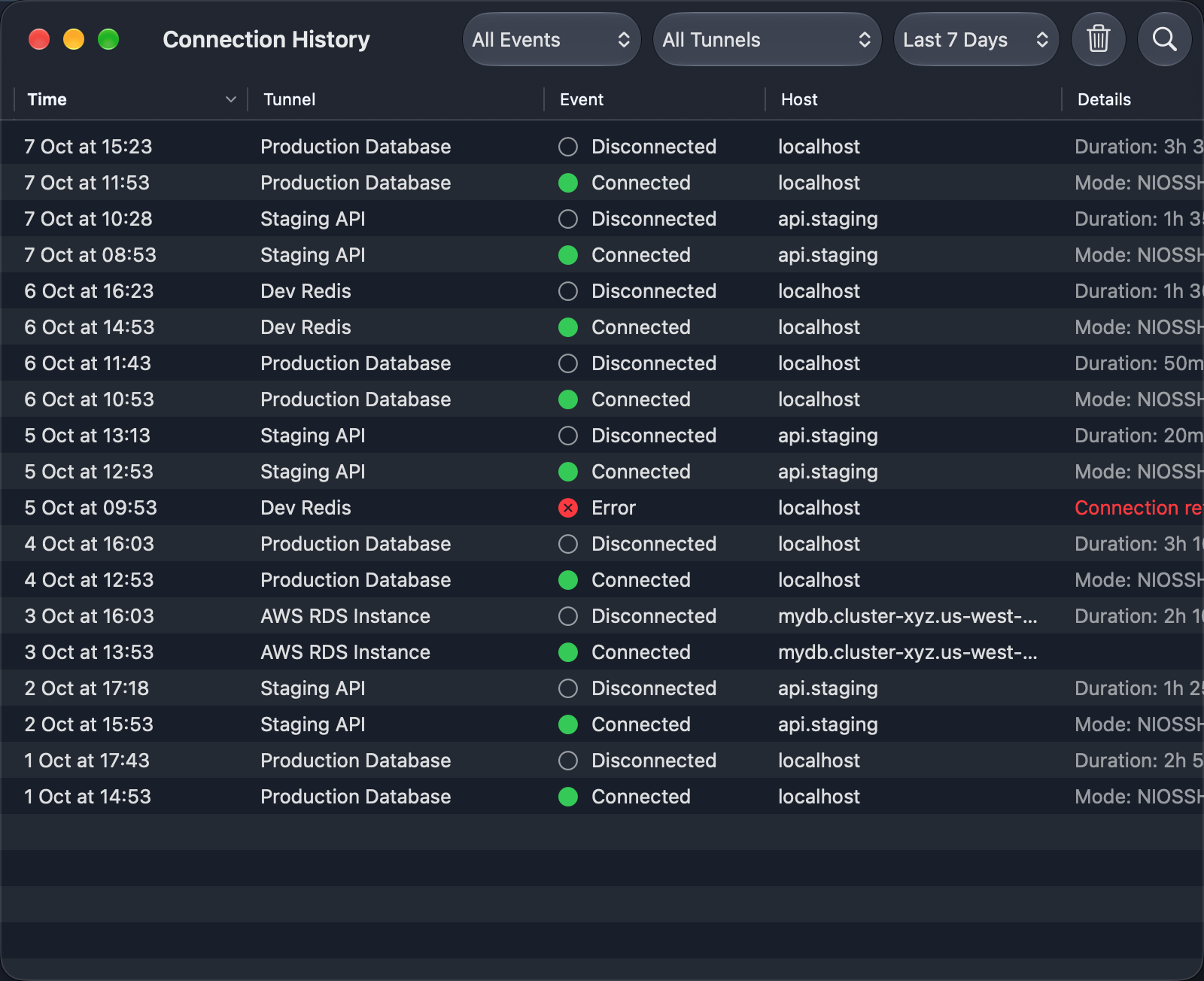
Opening History
Choose Window → Connection History to open the global history window. Connection history is a Premium feature; the window offers Upgrade… when it is unavailable on your plan. You can also view history in a selected tunnel's detail view by choosing History in the toolbar's Status / History switch.
History Table
The global window uses a table with Time, Tunnel, Event, Host, and Details columns. It starts with the newest events first. Click a column heading to sort it; click again to reverse the order.
Select rows and use Copy from the context menu or Cmd+C to copy their visible information as tab-separated text.
| Event | Details |
|---|---|
| Connected | SSH mode, when applicable |
| Disconnected | Session duration, when available |
| Error | Connection error message |
| Stage Changed | Connection stage |
| Mode Changed | SSH implementation |
Stage change events are disabled by default. Enable them in Settings → Advanced if you need connection-stage diagnostics.
Search and Filtering
Use Search History to match tunnel names, remote hosts, and error messages. Search is case-insensitive.
The toolbar also provides three filters:
- Event Type — show one event type or all events.
- Tunnel — show one tunnel or all tunnels.
- Time Range — last 24 hours, 7 days, 30 days, or all time. The initial range is 7 days.
All filters combine. If nothing matches, clear the search text or use Clear Filters when offered. A window with no recorded events shows No Connection History.
Settings
Configure history in Settings → Advanced:
| Setting | Default | Range |
|---|---|---|
| Maximum events per tunnel | 50 | 20–200 |
| Keep history for | 30 days | 7–90 days |
| Track error events | On | On/Off |
| Track stage changes | Off | On/Off |
| Track mode changes | On | On/Off |
| Anonymize hostnames | Off | On/Off |
History preferences are saved when you leave the Advanced pane. Old events are removed according to the event limit and retention period. Hostname anonymization replaces hosts with consistent hashes so you can correlate events without displaying the original names.
Clearing History
Use Clear All… in the global history toolbar or Clear All History in Advanced Settings. Both ask for confirmation before deleting history. The selected tunnel's detail view also offers a way to clear its own history.
Clearing history is irreversible
Confirming deletion permanently removes the selected history. Tunnel configurations and SSH keys are unaffected.
History is stored in UserDefaults on your Mac. Avoid sharing copied history without checking it for private hostnames and diagnostic information.